
Buy 256GB, Not 128GB: iPhone Storage Math for Photos, 4K, Refurbished

Buy 256GB if you’re a typical buyer, and stop worrying about the rest. Step up to 512GB or 1TB only if you shoot 4K video regularly or work in ProRAW. Go 128GB only if you genuinely live in iCloud and offload constantly. Internal storage is fixed the day you buy the phone. If you need more later, refurbished units at higher capacities are often the cheapest fix.
TL;DR:
- Upgrading from 128GB to 256GB offers adequate space for most users and costs between $100 to $200, while larger jumps should only be made based on actual needs.
- System files, apps, photos, and videos frequently consume space, with 4K videos rapidly filling storage at around 400MB per minute, especially when using ProRes or ProRAW formats.
- Selecting storage size requires projecting future usage, especially for media-heavy tasks, and leaving at least 10 to 15% free space to maintain optimal performance.
- Purchasing additional iCloud storage does not increase device capacity and can be more costly over time than the right onboard storage size, particularly if frequent offline access is needed.
- Upgrading storage after purchase is impossible; users should consider refurbished higher-capacity models if current needs are projected to exceed their original choice.
Table of Contents
- iPhone Storage Tiers Explained: What You Actually Get
- What’s Actually Filling Up Your iPhone?
- How Do You Choose the Right Storage Size for Your Iphone?
- Does Buying More iCloud Storage Fix a Full Phone?
- How to Free Up Space on Your iPhone Right Now
- Can You Upgrade iPhone Storage After Buying It?
- Does Storage Size Actually Affect iPhone Speed?
- How Much Storage Does 4K Video Really Use?
- How Do You Manage Offline Music and Podcasts Without Filling Up Your Phone?
- Why Buying Bigger Storage Refurbished Makes Financial Sense
- Sources
iPhone Storage Tiers Explained: What You Actually Get
Apple’s current lineup runs 128GB, 256GB, 512GB, 1TB, and 2TB, with 64GB surviving only on older or refurbished models. The number on the box isn’t the number you get to use. iOS, preinstalled apps, and system caches eat a real chunk before you take a single photo, so a “256GB” phone behaves more like 235 to 245GB of usable room.
Here’s roughly what each tier holds once you subtract that overhead:
- 128GB: around 110-115GB usable. Suitable for many photos and apps, but limited for heavy 4K video use.
- 256GB: generally comfortable for a moderate photo library, some 4K videos, and typical app usage without frequent deletions.
- 512GB: ample space for users with large video collections or advanced photo workflows.
- 1TB: designed for professional users with extensive video and media storage needs.
- 2TB: the highest tier, intended mainly for professional video workflows.
The jump from 128GB to 256GB usually costs $100 to $200 depending on the model. That’s cheap insurance against running out of space mid contract. The jump from 512GB to 1TB costs more per gigabyte, which is exactly why it should only happen when your actual usage demands it, not because more sounds safer.
What’s Actually Filling Up Your iPhone?
Four categories eat almost all your space, and they don’t eat it evenly. iOS and system files typically run 7 to 15GB, a fixed tax you pay no matter which tier you buy. Apps range from 2GB to more than 30GB depending on how many games and media apps you keep installed. Photos are the wild card: a typical HEIC photo runs 1.5 to 3MB, but a library of 20,000 images with some editing history and Live Photos easily hits 10 to 60GB.
Video is where storage math gets brutal. Standard 4K footage runs about 400MB per minute, meaning a 10-minute clip eats roughly 4GB. ProRAW and ProRes multiply that several times over.
| Category | Typical Range | Notes |
|---|---|---|
| iOS & system | 7–15 GB | Fixed regardless of tier |
| Apps | 2–30+ GB | Depends on games, media apps |
| Photos | 10–60 GB | Varies with library size and edits |
| Video (4K) | ~400 MB/minute | ProRAW/ProRes far larger |
Pro Tip: Storage labels use base-10 gigabytes, but iOS reports space in base-2, which is why your “256GB” phone shows closer to 238GB even before you install anything. Keeping 10 to 15% of total capacity free is the threshold under which iOS starts stuttering during updates and photo processing.
How Do You Choose the Right Storage Size for Your Iphone?
Guessing your storage needs from a gut feeling is how people end up either overpaying or deleting vacation photos on day one. A better process takes ten minutes and gives you a number you can trust.
- Check your current usage. Go to Settings, then General, then iPhone Storage. Note how much space photos, apps, and media each take right now.
- Project forward. Multiply your current photo and video growth rate by however long you plan to keep the phone, typically 3 to 4 years. If you shoot 5GB of video a month now, that’s 180 to 240GB just for video over four years.
- Add a buffer. Tack on 10 to 20% headroom on top of your projection, then round up to the nearest tier. A calculator that models this properly beats eyeballing it, since it accounts for ownership horizon instead of just today’s usage.
Once you have that number, match it against how people in your situation actually use their phones:
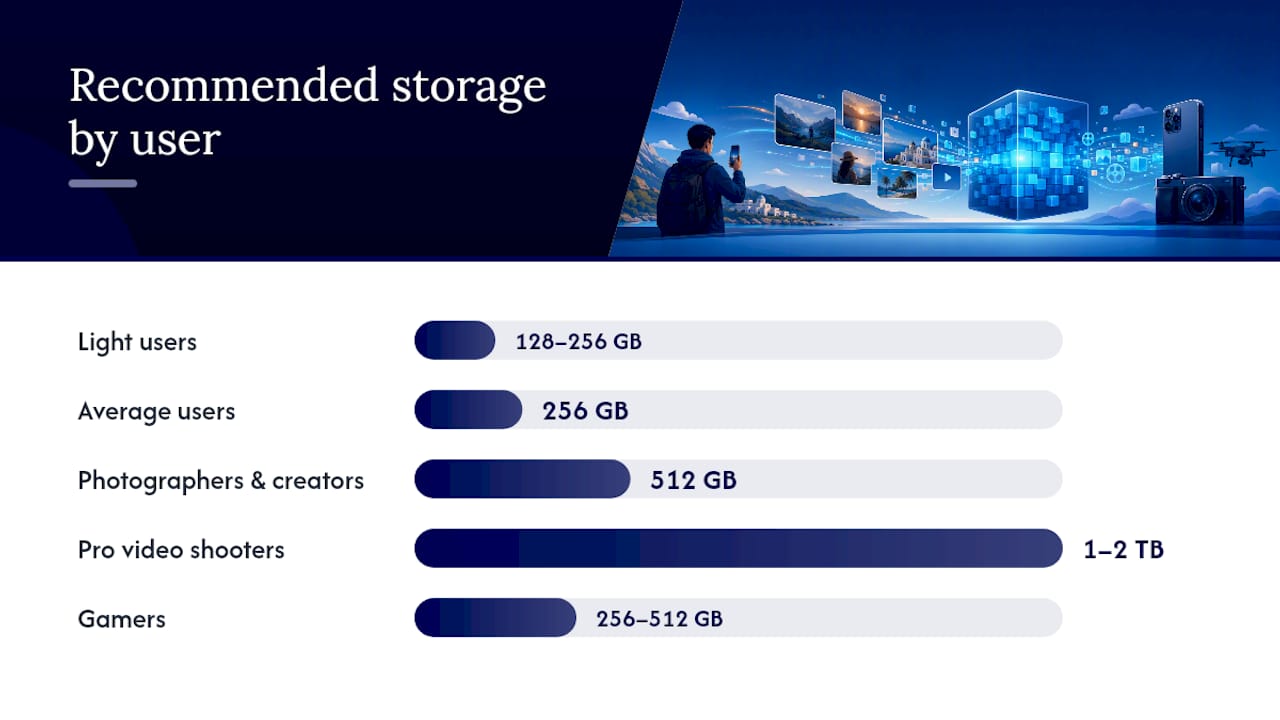
- Light users (texting, browsing, a few photos): 128 to 256GB.
- Average users (social media, moderate photos, streaming): 256GB.
- Photographers and creators (regular photo editing, some 4K): 512GB.
- Pro video shooters (ProRAW, ProRes, frequent 4K): 1TB or 2TB.
- Gamers (large game installs, frequent downloads): 256 to 512GB.
If your calculation lands you right between two tiers, take the higher one. The cost per gigabyte usually drops as capacity increases, so the jump often costs less than you’d expect relative to the extra breathing room it buys you.
Pro Tip: If you’re deciding between 128GB and 256GB, our 64GB vs 128GB storage comparison breaks down exactly where the smaller tiers start to hurt.
Does Buying More iCloud Storage Fix a Full Phone?
No, and this trips up more buyers than you’d think. Purchasing a bigger iCloud plan doesn’t add a single gigabyte to your device. It’s a separate pool that lives on Apple’s servers, not inside your phone.
What iCloud does well is offload full-resolution originals while keeping lightweight thumbnails on your device through Optimize iPhone Storage. That’s genuinely useful, but it comes with a catch: editing or sharing an offloaded photo requires downloading the original again, which needs a connection and a moment to sync.
Two combinations show up often among real buyers:
- 256GB device + 200GB iCloud: solid middle ground for people who want local speed plus a cloud safety net.
- 128GB device + 2TB iCloud: works if you’re disciplined about offloading and rarely need offline access to your full library.
Over three years, the cheaper device plus a bigger cloud subscription can actually cost more than just buying the larger device outright, once you add up monthly fees. When you upgrade or trade in a phone, always confirm your latest iCloud backup finished before wiping the old device. Restoring from backup is what makes the whole system work.
How to Free Up Space on Your iPhone Right Now
If your phone is already full, work through this in order rather than randomly deleting things:
- Delete large videos first. Go to Settings, General, iPhone Storage, and sort by size. Videos are almost always the biggest single offenders.
- Empty Recently Deleted. Photos and videos you already deleted still count against your storage for 30 days unless you clear that folder manually.
- Offload unused apps. Large games and rarely opened apps can be removed while keeping their data, ready to reinstall later.
- Clear message attachments. Years of photos and videos sent through Messages pile up quietly.
- Turn on Optimize iPhone Storage. This keeps your photo library intact on-screen while storing full originals in iCloud.
This sequence typically reclaims 15 to 40GB in under 15 minutes for most people who haven’t cleaned up in a year or more. Pairing photo cleanup with Optimize iPhone Storage can shrink your library’s on-device footprint by roughly half without losing access to a single image.
Pro Tip: A focused photo cleanup app that surfaces duplicates and blurry shots usually clears more space in 15 minutes than an hour of manual scrolling and deleting one photo at a time.
Keep this in mind before every major iOS update: installers need temporary free space to unpack, sometimes several gigabytes worth. If you’re hovering near full, an update can fail outright until you clear room. Staying above that 10 to 15% free threshold protects you from both slowdowns and failed updates at the same time.
Can You Upgrade iPhone Storage After Buying It?
No. iPhone storage chips are soldered directly to the logic board, and there’s no supported way to swap in a bigger one. Apple’s own support community has settled this repeatedly: what you buy is what you keep for the life of the device.
Third-party shops sometimes advertise NAND chip swaps for higher capacity. Skip these.
Replacing the storage chip on a soldered logic board risks bricking the phone entirely, voids any remaining warranty, and rarely passes Apple’s diagnostics if you ever need service afterward. The savings almost never justify the risk.
Your real options when you outgrow a device:
- Trade in your current phone and move up to a higher capacity model.
- Buy new or refurbished with a larger tier from the start.
- Lean harder on cloud offloading to stretch what you already own.
Restoring to a new device is straightforward: back up through iCloud or a computer, then choose “Restore from Backup” during setup on the new phone. Your apps, photos, and settings transfer automatically.
Does Storage Size Actually Affect iPhone Speed?
Yes, and it’s not just about running out of room for new files. iOS uses free storage as working space for temporary files, app caches, and background processes. When your phone drops below that 10 to 15% free threshold, the operating system has less room to juggle these tasks efficiently.
The symptoms are recognizable if you’ve experienced them: apps take longer to launch, the camera hesitates before opening, and Face ID unlocks feel a beat slower than usual. None of that means your processor is failing. It means iOS is fighting for elbow room it doesn’t have.
This is also why software updates get sluggish or fail outright on nearly full phones. The installer needs staging space to unpack new system files before replacing the old ones, and a phone sitting at 2GB free simply doesn’t have it.
There’s a secondary effect too: a full Photos library makes iOS work harder every time it indexes images for search, memories, or facial recognition features. That indexing runs in the background, competing for the same limited resources as everything else you’re trying to do.
None of this means a larger tier makes your phone faster in absolute terms. A 1TB iPhone with the same chip as a 256GB model won’t open Safari any quicker when both have 20% free. But a fuller drive on a smaller tier will start showing these symptoms sooner, simply because you hit that danger threshold faster.
How Much Storage Does 4K Video Really Use?
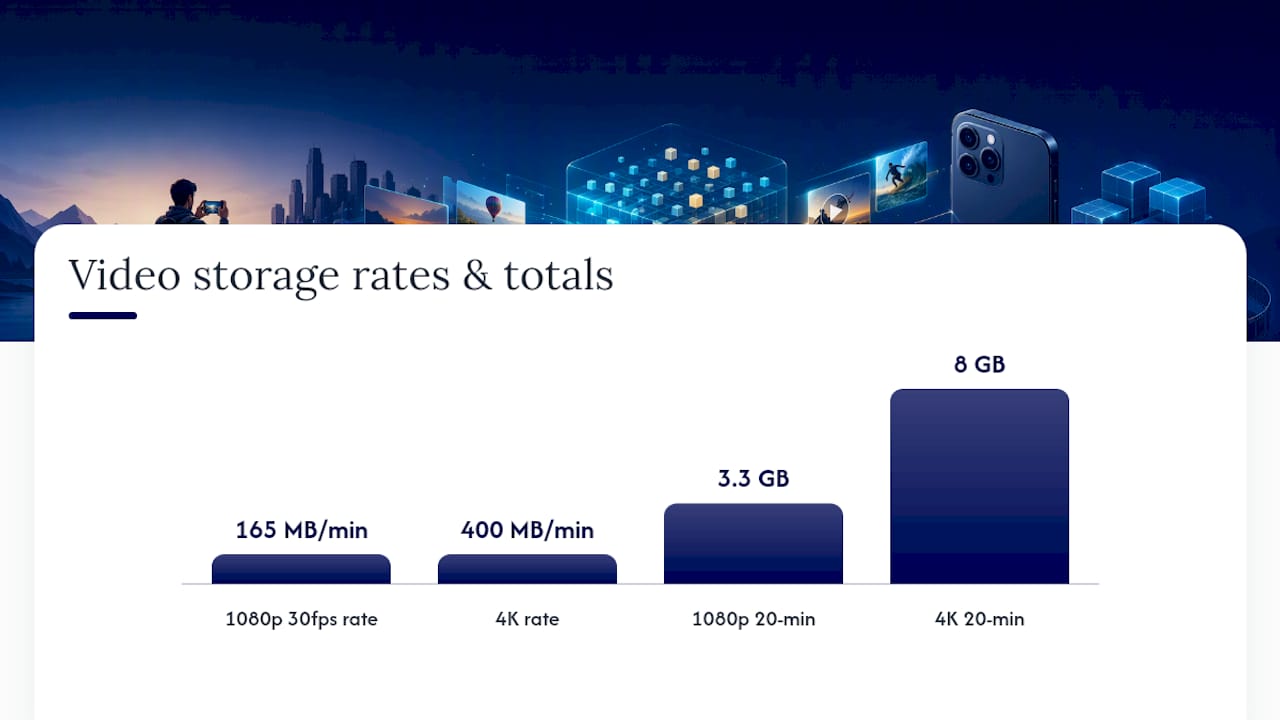
Video quality settings are the single biggest lever most people don’t realize they’re pulling. Standard 1080p footage at 30 frames per second runs roughly 130 to 200MB per minute. Switch to 4K and that jumps to around 400MB per minute, roughly double to triple the file size for the same length clip.
Push further into ProRAW for photos or ProRes for video, and the numbers stop being subtle. ProRes footage can run into the multiple gigabytes per minute range depending on resolution and frame rate, which is why Apple restricts ProRes recording to models with at least 256GB and recommends external storage for extended sessions.
Here’s what that means in practice. A parent recording a 20-minute recital in 1080p uses roughly 3 to 4GB. The same recital in 4K eats 8GB or more. Multiply that by a few events a month, and 4K alone can chew through 50 to 100GB a year without a single photo added.
The fix isn’t necessarily downgrading permanently. Most people benefit from matching quality settings to the occasion: 4K for footage you’ll actually edit or treasure, 1080p for casual clips you’re recording just to have. You can change this anytime in Settings, under Camera, then Record Video, and the setting sticks until you change it again. Frame rate matters too. Shooting 4K at 60 frames per second instead of 24 or 30 roughly doubles the file size again, since you’re capturing twice as many frames per second of footage.
How Do You Manage Offline Music and Podcasts Without Filling Up Your Phone?
Downloaded music and podcasts are sneaky space consumers because they accumulate quietly in the background, often set to auto-download without you noticing.
Apple Music and Spotify both let you cap offline storage or switch to streaming-only mode, which is the single fastest fix if you’re not actually flying without Wi-Fi often. A typical downloaded album in standard quality runs 50 to 100MB; the same album in lossless or high-resolution audio can run three to four times that size.
Podcast apps are often worse offenders because many default to auto-downloading every new episode of every show you follow, whether you listen or not. Go into your podcast app’s settings and switch from “auto-download” to “download only what I choose,” or set episodes to delete automatically after you’ve played them.
A practical approach: keep one or two playlists or podcast queues downloaded for actual offline moments, like flights or dead zones, and stream everything else. This alone can save several gigabytes a month for a moderate listener, without any noticeable loss in convenience for the other 90% of the time you have a signal anyway.
Why Buying Bigger Storage Refurbished Makes Financial Sense
I’ll say this plainly: if your calculation points to 512GB or 1TB, buying that tier refurbished is often smarter than buying a smaller tier new. Every unit is typically inspected through a thorough 25-point checklist covering key aspects for storage performance like flash memory function and battery health, not just cosmetic scratches.
That math changes the decision for a lot of buyers.
Before you buy any refurbished device, check three things: the cosmetic grade (A through D), the return window, and whether the listing states the actual verified storage capacity.
— Saad


