
Verizon BYOD: Check IMEI to Confirm Unlocked Compatibility

Most unlocked phones will work on Verizon, but “unlocked” alone doesn’t guarantee it. Your device also needs the right LTE and 5G bands, a clean IMEI, and unlocked software status. The one step that settles the question is Verizon’s own IMEI/compatibility checker. Run it before you buy a SIM, port a number, or assume anything.
TL;DR:
- Verizon’s IMEI checker is the definitive tool to confirm if a device is truly compatible with their LTE and 5G networks, not just unlocked status.
- Compatibility depends on supporting specific Verizon bands and regional firmware, especially for devices purchased overseas or through resellers.
- Activating a phone via eSIM or physical SIM requires ensuring the device supports the chosen method and updating software beforehand for smooth provisioning.
- Unlocking a device from another carrier is necessary before Verizon activation, but blacklisted IMEI devices cannot be fixed and should be avoided.
- Buying a verified, already-unlocked device from a trusted seller reduces the risk of blacklist issues and simplifies the activation process.
Table of Contents
- How to Check Verizon Unlocked Compatibility Step by Step
- What “Compatible” Actually Means: Bands, Radios, and Software
- SIM vs eSIM: Activating an Unlocked Phone on Verizon
- Fixing a Locked Phone or Blacklisted IMEI
- Quick Fixes When a Check or Activation Fails
- How Long Unlock and Activation Really Take
- Buying a Verified Unlocked Phone Instead of Gambling on BYOD
- Author’s Quick Checklist Before You Switch
- Skip the Guesswork: Buy Already-Verified Unlocked Phones
- Sources
How to Check Verizon Unlocked Compatibility Step by Step
You don’t need to guess. Verizon built a tool specifically to answer this question, and it takes about two minutes.
Find your device’s IMEI first. On an iPhone, dial *#06# or go to Settings > General > About. On Android, it’s usually under Settings > About Phone > IMEI, though the exact path varies by manufacturer. Dual-SIM phones have two IMEI numbers, labeled IMEI 1 and IMEI 2, and it’s worth checking both since Verizon’s checker sometimes returns different results for each slot.
Once you have the number, head to Verizon’s BYOD compatibility test and enter the 15-digit IMEI (or MEID/ESN on older devices). You’ll get one of four outcomes:
- Compatible — the device supports Verizon’s network and can be activated
- Not compatible — missing hardware or software support; the phone won’t work regardless of unlock status
- Locked — the phone is tied to another carrier and needs an unlock first
- Lost or stolen — the IMEI is blacklisted and activation will be denied
Copy and paste the IMEI rather than typing it manually. A single transposed digit is the most common reason people get a false “not compatible” result.
What “Compatible” Actually Means: Bands, Radios, and Software
“Unlocked” and “compatible” are two different things, and mixing them up is where most confusion starts. Unlocked means the phone isn’t tied to a specific carrier’s SIM. Compatible means the phone’s radio hardware and software actually talk to Verizon’s network.
Verizon phased out its old CDMA network years ago, and modern compatibility now runs almost entirely on LTE and 5G band support rather than the CDMA versus GSM split that used to confuse buyers. A phone can be fully unlocked and still fail the checker if it lacks the specific bands Verizon uses in your area, or if the firmware build was designed for a different regional carrier.
Why this trips people up: phones bought overseas or through certain resellers sometimes ship with region-locked modem profiles that never activate the full set of US bands, even after a factory unlock.
If the checker says “not compatible,” don’t stop there. Verify:
- The exact model number (not just the marketing name)
- Whether your model was sold for the US market or another region
- Current software and carrier settings updates
SIM vs eSIM: Activating an Unlocked Phone on Verizon
Once your device checks out, activation comes down to whether you’re using a physical SIM or eSIM, and that depends on the phone.
- Physical SIM path. If your phone doesn’t support eSIM, or you’re bringing an older device, order a Verizon SIM kit and insert it once it arrives. Some existing SIMs from other carriers aren’t compatible with Verizon’s network and need to be swapped.
- eSIM path. Newer phones can activate through My Verizon using a QR code or the Verizon app, without ever touching a physical card. Verizon’s own eSIM activation instructions walk through the provisioning screens.
- Dual-SIM handling. If you’re activating one line on a dual-SIM phone, confirm which IMEI slot you’re assigning to Verizon, since mixing up IMEI 1 and IMEI 2 is a common source of activation errors.
Pro Tip: Update your phone’s operating system and carrier settings before you start the activation flow. An outdated OS build is a frequent, invisible reason eSIM provisioning stalls halfway through.
Fixing a Locked Phone or Blacklisted IMEI
A “locked” result and a “blacklisted” result are not the same problem, and they don’t have the same fix.
A locked phone is simply tied to its original carrier. Verizon requires devices to be unlocked by that carrier before BYOD activation will work. You’ll need to contact your previous carrier, confirm you meet their unlock eligibility (usually tied to finishing a payment plan or completing a minimum active period), and request the unlock directly.
A blacklisted IMEI is a different story. Devices end up on the lost or stolen list after being reported by a previous owner or carrier, and no amount of unlocking fixes that status.
- Locked: request unlock from the prior carrier, wait for confirmation, then recheck
- Blacklisted: dispute with the reporting carrier if you believe it’s an error; otherwise, the device generally can’t be activated
- Still shows locked after unlocking: give it time. Propagation isn’t instant.
If a phone comes back blacklisted with no resolution path, the safer move is usually to cut losses and buy a device with clean, verified status instead of chasing a fix that may not exist.
Quick Fixes When a Check or Activation Fails
Most failures fall into a handful of predictable buckets, and the fix is usually faster than people expect.
- “Not compatible”: double check the exact model number and region, then confirm software is current.
- “Locked”: request the carrier unlock, wait roughly 24 hours, and rerun the checker before assuming it failed.
- Stuck after “compatible”: try a fresh SIM, restart the device, recheck eSIM settings in My Verizon, and restart the activation flow from scratch.
- Still stuck: contact Verizon support or visit a store. Some edge cases (older MEID devices, business accounts) need a live agent.
Pro Tip: If activation hangs at the same screen twice in a row, don’t keep retrying the same steps. Restart the phone completely first. Half of stalled eSIM installs resolve after a simple reboot.
How Long Unlock and Activation Really Take
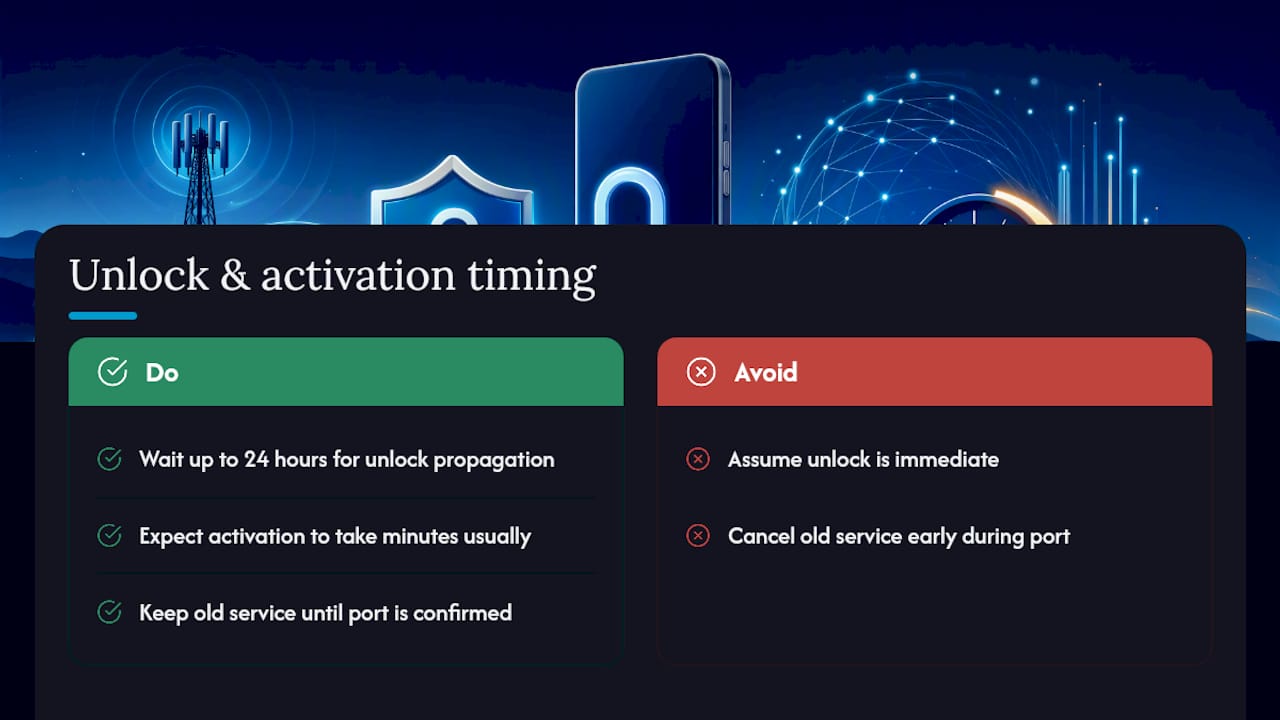
Patience matters more than people expect here. An unlock confirmed by your old carrier can take up to 24 hours to propagate through the systems Verizon checks against, so a “locked” result right after unlocking doesn’t necessarily mean something’s wrong.
Activation itself is usually quick, often just minutes, but can occasionally stretch to 24 hours in rare cases. If you’re porting a number, keep your old service active until Verizon confirms the port completed. Canceling early is the single most common cause of avoidable downtime during a carrier switch.
Buying a Verified Unlocked Phone Instead of Gambling on BYOD
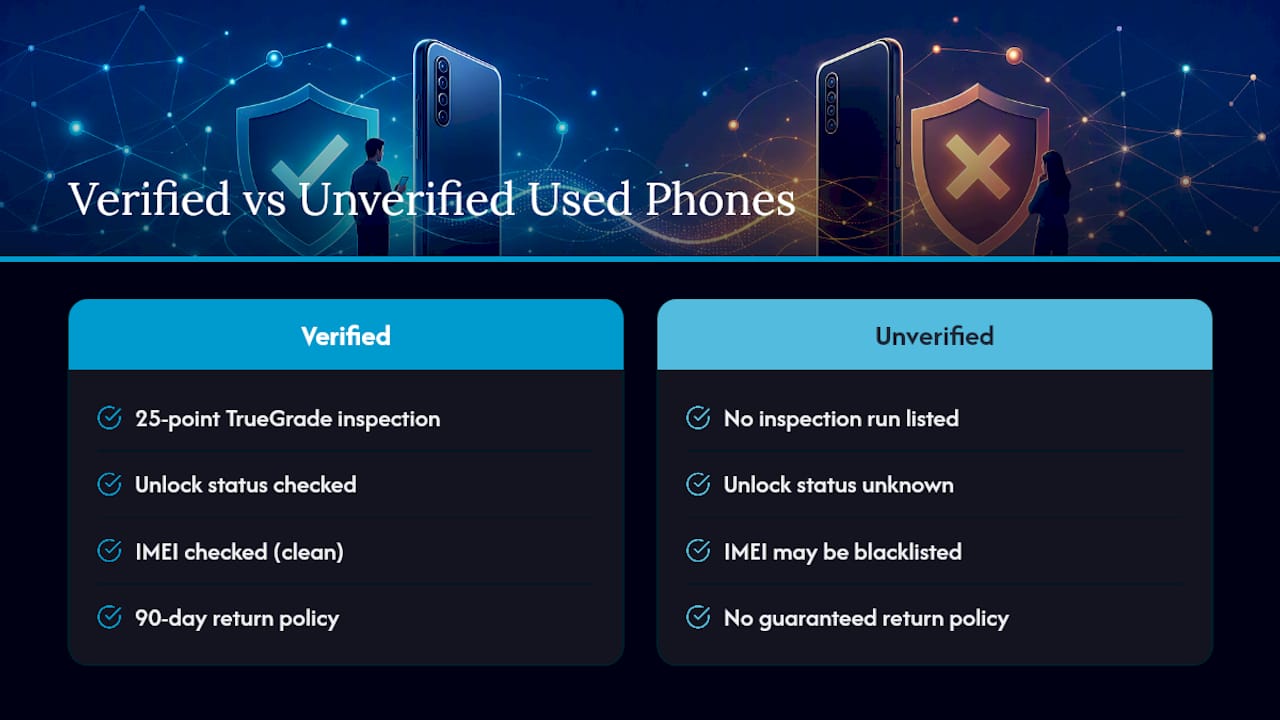
BYOD works well when you already know a phone’s history. It gets riskier when you don’t, which is where a device like a used marketplace phone can turn into an unexpected headache.
Devicegiant runs every device through a 25-point TrueGrade inspection before it’s listed, checking functionality, unlock status, and cosmetic condition, and backs every sale with a 90-day return policy. That combination removes the two biggest unknowns in any BYOD situation: whether the phone is genuinely unlocked, and whether its IMEI is clean. Buying verified inventory instead of an unverified listing means you’re not the one discovering a blacklist problem after the sale.
Author’s Quick Checklist Before You Switch
Here’s what I’d actually do in this order: find the IMEI, run it through Verizon’s checker, and confirm the unlock status before deciding between SIM and eSIM. If the result comes back anything other than a clean “compatible,” don’t force it. Either work the unlock process with the prior carrier or, if the history is murky, buy from a seller that verifies unlock status and IMEI condition up front. Skipping that last step is how people end up stuck with a phone that looks fine but never activates.
— Saad
Skip the Guesswork: Buy Already-Verified Unlocked Phones
Devicegiant sells refurbished phones that arrive already confirmed unlocked, inspected against a 25-point checklist, and backed by a 90-day return window, so you’re not the one troubleshooting a blacklist or a locked IMEI after the fact.
That matters because BYOD success depends entirely on things you usually can’t see before you buy: unlock status, band support, and IMEI history. A certified refurbished device skips that uncertainty since it’s tested and disclosed before it ships, not after you’ve already tried activating it. If you want a specific model, the Samsung Galaxy S21 5G unlocked is a solid example of inventory sold ready for Verizon activation without the lock or blacklist gamble. Browse the current lineup and check what’s in stock before you commit to a BYOD switch.
Sources
- Bring your own mobile device (BYOD) FAQs — Verizon Support
- eSIM activation instructions — Verizon Support


